Pages

Showing posts with label scottgu. Show all posts

Friday, January 23, 2009

Tip/Trick: How to Register User Controls and Custom Controls in Web.config

Have fun reading this tip and trick from Scottgu.

I've been including this technique in my ASP.NET Tips/Tricks talks the last year, but given how many people are always surprised by its existence I thought it was worth a dedicated tip/trick post to raise the visibility of it (click here to read other posts in my ASP.NET Tips/Tricks series).

Problem:

In previous versions of ASP.NET developers imported and used both custom server controls and user controls on a page by adding <%@Register%> directives to the top of pages like so:

<%@ Register TagPrefix="scott" TagName="header" Src="Controls/Header.ascx" %>
<%@ Register TagPrefix="scott" TagName="footer" Src="Controls/Footer.ascx" %>
<%@ Register TagPrefix="ControlVendor" Assembly="ControlVendor" %>

<html>
<
body>
    <
form id="form1" runat="server">
        <
scott:header id="MyHeader" runat="server" />
    </
form>
</
body>
</
html>

Note that the first two register directives above are for user-controls (implemented in .ascx files), while the last is for a custom control compiled into an assembly .dll file.  Once registered developers could then declare these controls anywhere on the page using the tagprefix and tagnames configured.

This works fine, but can be a pain to manage when you want to have controls used across lots of pages within your site (especially if you ever move your .ascx files and need to update all of the registration declarations.

Solution:

ASP.NET 2.0 makes control declarations much cleaner and easier to manage. Instead of duplicating them on all your pages, just declare them once within the new pages->controls section with the web.config file of your application:

<?xml version="1.0"?>

<
configuration>

<
system.web>

<
pages>
<
controls>
<
add tagprefix="scottgu" src="~/Controls/Header.ascx" tagname="header"/>
<
add tagprefix="scottgu" src="~/Controls/Footer.ascx" tagname="footer"/>
<
add tagprefix="ControlVendor" assembly="ControlVendorAssembly"/>
</
controls>
</
pages>

</
system.web>

</
configuration>

You can declare both user controls and compiled custom controls this way.  Both are fully supported by Visual Studio when you use this technique -- and both VS 2005 Web Site Projects and VS 2005 Web Application Projects support them (and show the controls in WYSIWYG mode in the designer as well as for field declarations in code-behind files).

One thing to note above is the use of the "~" syntax with the user-controls.  For those of you not familiar with this notation, the "~" keyword in ASP.NET means "resolve from the application root path", and provides a good way to avoid adding "..\" syntax all over your code.  You will always want/need to use it when declaring user controls within web.config files since pages might be using the controls in different sub-directories - and so you always need to resolve paths from the application root to find the controls consistently.

Once you register the controls within the web.config file, you can then just use the controls on any page, master-page or user control on your site like so (no registration directives required):

<html>
<
body>
<
form id="form1" runat="server">
<
scott:header id="MyHeader" runat="server" />
</
form>
</
body>
</
html>

Hope this helps,

Scott

P.S. Special thanks to Phil Haack who blogged about this technique as well earlier this month (for those of you who don't know Phil, he helps build the very popular SubText blog engine and has a great blog).

Thursday, January 8, 2009

MVC - Views without Code-Behind Files by ScottGu

Based on feedback from a lot of people, we've decided to make a change so that MVC view files by default do not have code-behind files. This change helps to reinforce the purpose of views in a MVC world (which are intended to be purely about rendering and to not contain any non-rendering related code), and for most people eliminates unused files in the project:
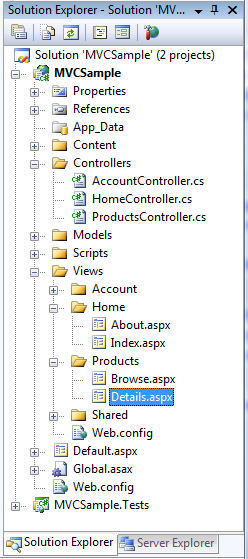
With the ASP.NET MVC Beta, developers could eliminate the code-behind file by using the CLR syntax for generic types in a view's inherits attribute, but that CLR syntax is (to put it mildly) pretty undiscoverable and hard to use.  The ASP.NET MVC team was able to combine a few extensibility features already in ASP.NET to now enable the standard VB/C# language syntax within the inherits attribute with the ASP.NET RC build:
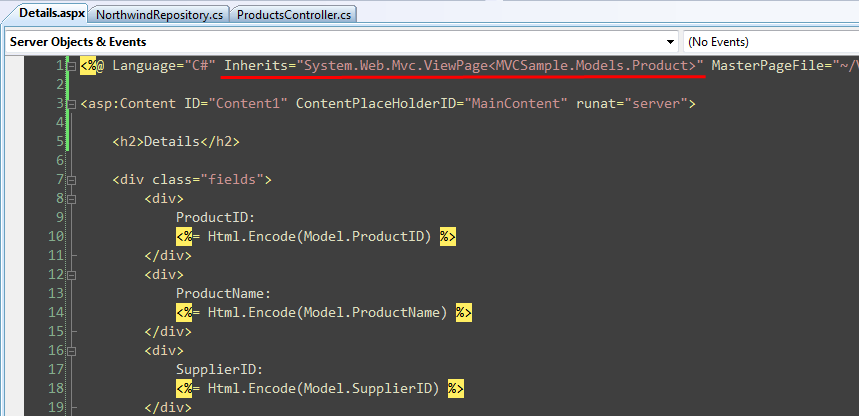
One other nice benefit of not using a code-behind file is that you'll now get immediate intellisense when you first add them to the project.  With the beta you had to do a build/compile immediately after creating a view in order to get code intellisense within it.  The RC makes the workflow of adding and immediately editing a view compile-free and much more seamless.

Top-Level Model Property on Views

With previous builds of ASP.NET MVC, you accessed the strongly typed model object passed to the view using the ViewData.Model property:

The above syntax still works, although now there is also a top-level "Model" property on ViewPage that you can use:

This property does the same thing as the previous code sample - its main benefit is that it allows you to write the code a little more concisely.

HTML/AJAX Helpers Now Enable Expression Syntax

One of the requests a few people have asked for is the ability to use strongly-typed expression syntax (instead of using strings) when referring to the Model when using a View's HTML and AJAX helper objects.

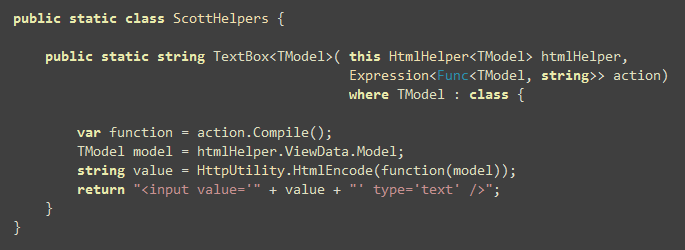
With the beta build of ASP.NET MVC this wasn't possible, since the HtmlHelper and AjaxHelper helper classes didn't expose the model type in their signature, and so people had to build helper methods directly off of the ViewPage<TModel> base class in order to achieve this.  The ASP.NET MVC RC build introduces new HtmlHelper<TModel> and AjaxHelper<TModel> types that are exposed on the ViewPage<TModel> base class.  These types now allow anyone to build strongly-typed HTML and AJAX helper extensions that use expression syntax to refer to the View's model.

For example, I could build a (very simple) strongly-typed "TextBox" helper method using the code below:
And then use it within any of my views to bind against a Product model object like so:
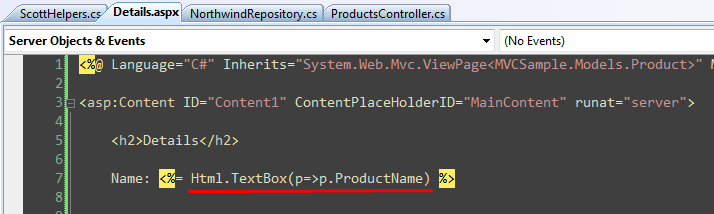
Visual Studio will provide full intellisense for the strongly-typed expression syntax when working against the View's model in the source editor in this way:
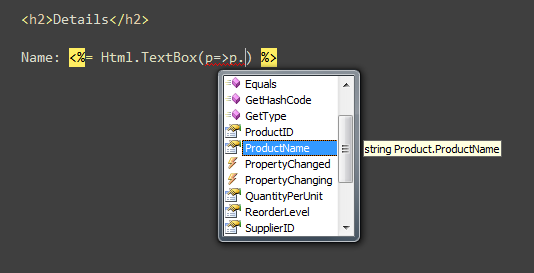
Note: the HTML helper extensions in the core ASP.NET MVC V1 assembly will still use the existing (non-expression based) syntax.  We are then planning to add expression-based versions to the MVCFutures assembly. You can of course also add your own helper methods (using either strings or strongly-typed expressions).  All of the built-in helper methods can also optionally be removed (because they are extension methods) if you want to replace or override them with your own.

Scaffolding Support

The ASP.NET MVC RC build includes automatic "UI scaffolding" support when creating views using the new ASP.NET MVC "Add View" command inside Visual Studio.  The scaffolding support enables the automatic generation of views against any .NET type or object - meaning it can work against POCO classes, LINQ to SQL, LINQ to Entities, NHibernate, SubSonic, LLBLGen Pro, or any other object model. The scaffolding engine uses reflection to retrieve the public shape of a View's model type, and then passes it to a scaffolding template to populate appropriate markup based on it within the view being created.

For example, assume we have a ProductsController class and want to create an "Edit" action on it to display an edit view of a particular Product.  Using the RC build we can right-click within our "Edit" action method and choose the "Add View" context menu command like so:
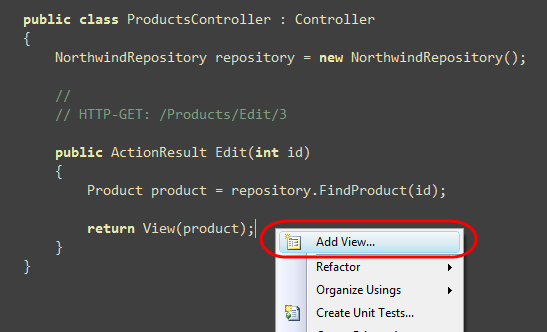
Within the "Add View" dialog we can then indicate that we are passing a "Product" type to our View:
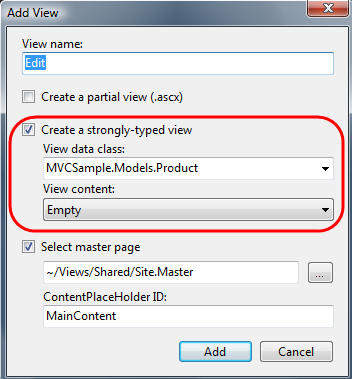
We can indicate that we want an "Empty" view template created (like above), or indicate that we want VS to automatically scaffold a form "Edit" view for the Product object we are supplying:
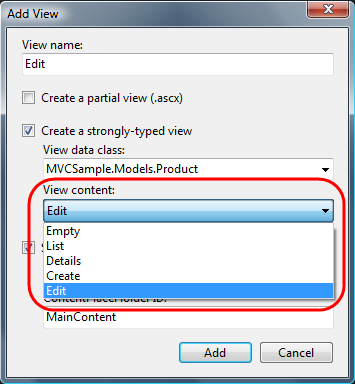
If we choose the "Edit" template VS will automatically generate a file for us that has the appropriate HTML and validation helpers to create an editable form view:
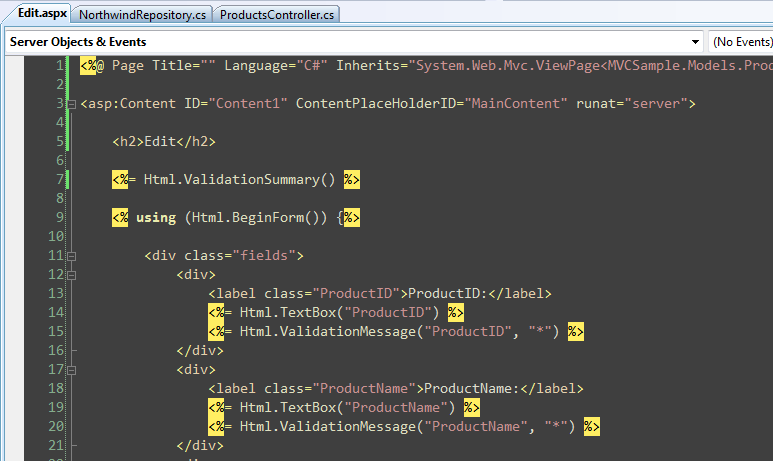
We can then run the application and immediately get edit UI:
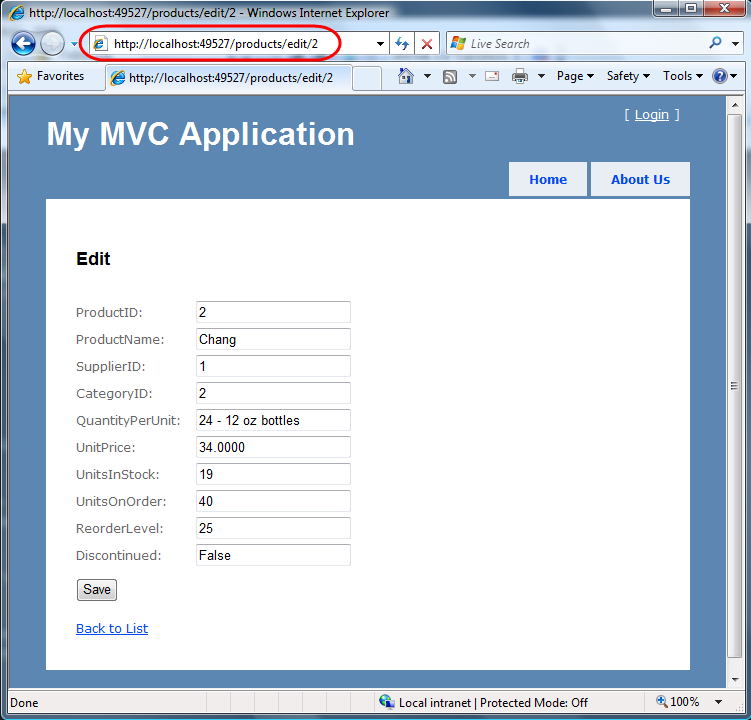
We can then go in and change the generated edit.aspx file however we want to tweak/customize it. 

One of the really nice things about the scaffolding system we are shipping is that it is implemented using Visual Studio's built-in T4 code generation system (Scott Hanselman has a nice post about this here).  The "List", "Edit", "Create" and "Details" templates we ship with ASP.NET MVC can all be completely customized or replaced with T4 templates of your own (or downloaded from the ASP.NET MVC Design Gallery). So if you have your own particular way of creating HTML, or want to use custom HTML helpers (for example: strongly-typed expression based ones) you can update the default templates and the scaffolding system will use them going forward. 

We are planning to enable the templates to be overriden both on a machine-wide level, as well as on a per-project level (so that you can check-in application-specific scaffolding templates under source control and share them across a team).

MSBuild Task for Compiling Views

By default when you do a build on an ASP.NET MVC project it compiles all code within the project, except for the code within view files.  With the ASP.NET MVC Beta you had to roll your own MSBuild task if you wanted to compile the views.  The ASP.NET MVC RC build now includes a built-in MSBuild task that you can use to include views as part of the project compilation process.  This will verify the syntax and code included inline within all views and master pages for the application, and give you build errors if it encounters any problems.

For performance reasons we don't recommend running this for quick compiles during development, but it is convenient to add to particular build configuration profiles (for example: staging and deployment) and/or for use with Build or CI (continuous integration) servers.

Other ASP.NET MVC Release Candidate features coming

Above is a short list of some of the view-specific functionality coming with the release candidate build. 

There are many other features and requests coming with the RC as well including: IDataErrorInfo support to enable models to surface validation error messages, as well as richer error validation extensibility to enable you to use your own approach to surface model validation errors to ModelBinders (the IDataErrorInfo support is built on top of this); new FileResult and JavaScriptResult ActionResult types (allowing you to more easily download files as well as executable JavaScript to browsers); built-in jQuery -vsdoc intellisense support; refactored AccontController support to enable easier unit testing and extensibility with form login scenarios; a variety of project template improvements, more extensibility everywhere; lots of bug fixes; and a few other cool features I'll blog about later once the RC is out.

We'll be releasing the ASP.NET MVC Release Candidate in January.  Our plan is to have that build be ASP.NET MVC V1 API and feature-complete and have zero known bugs.  We'll give people a short period to upgrade to it, give it a good tire-kicking, and report any last minute issues they find.  We'll then ship the official V1 release shortly after that (so not far off now).

Hope this helps,

Scott

Read the original post on http://weblogs.asp.net/scottgu/

Wednesday, October 15, 2008

Don’t run production ASP.NET Applications with debug=”true” enabled by ScottGu

I didn't know this before until I saw this article from ScottGu. So here it goes, read his article about web.config's <compilation debug=”true”/>.

One of the things you want to avoid when deploying an ASP.NET application into production is to accidentally (or deliberately) leave the <compilation debug=”true”/> switch on within the application’s web.config file.

Doing so causes a number of non-optimal things to happen including:

1) The compilation of ASP.NET pages takes longer (since some batch optimizations are disabled)

2) Code can execute slower (since some additional debug paths are enabled)

3) Much more memory is used within the application at runtime

4) Scripts and images downloaded from the WebResources.axd handler are not cached

This last point is particularly important, since it means that all client-javascript libraries and static images that are deployed via WebResources.axd will be continually downloaded by clients on each page view request and not cached locally within the browser.  This can slow down the user experience quite a bit for things like Atlas, controls like TreeView/Menu/Validators, and any other third-party control or custom code that deploys client resources.  Note that the reason why these resources are not cached when debug is set to true is so that developers don’t have to continually flush their browser cache and restart it every-time they make a change to a resource handler (our assumption is that when you have debug=true set you are in active development on your site).

When <compilation debug=”false”/> is set, the WebResource.axd handler will automatically set a long cache policy on resources retrieved via it – so that the resource is only downloaded once to the client and cached there forever (it will also be cached on any intermediate proxy servers).  If you have Atlas installed for your application, it will also automatically compress the content from the WebResources.axd handler for you when <compilation debug=”false”/> is set – reducing the size of any client-script javascript library or static resource for you (and not requiring you to write any custom code or configure anything within IIS to get it).

What about binaries compiled with debug symbols?

One scenario that several people find very useful is to compile/pre-compile an application or associated class libraries with debug symbols so that more detailed stack trace and line error messages can be retrieved from it when errors occur.

The good news is that you can do this without having the have the <compilation debug=”true”/> switch enabled in production.  Specifically, you can use either a web deployment project or a web application project to pre-compile the code for your site with debug symbols, and then change the <compilation debug=”true”/> switch to false right before you deploy the application on the server.

The debug symbols and metadata in the compiled assemblies will increase the memory footprint of the application, but this can sometimes be an ok trade-off for more detailed error messages.

The <deployment retail=”true”/> Switch in Maching.config

If you are a server administrator and want to ensure that no one accidentally deploys an ASP.NET application in production with the <compilation debug=”true”/> switch enabled within the application’s web.config file, one trick you can use with ASP.NET V2.0 is to take advantage of the <deployment> section within your machine.config file.

Specifically, by setting this within your machine.config file:

<configuration>

    <system.web>

          <deployment retail=”true”/>

    </system.web>

</configuration>

You will disable the <compilation debug=”true”/> switch, disable the ability to output trace output in a page, and turn off the ability to show detailed error messages remotely.  Note that these last two items are security best practices you really want to follow (otherwise hackers can learn a lot more about the internals of your application than you should show them).

Setting this switch to true is probably a best practice that any company with formal production servers should follow to ensure that an application always runs with the best possible performance and no security information leakages.  There isn’t a ton of documentation on this switch – but you can learn a little more about it here.

Hope this helps,

Scott

kick it on DotNetKicks.com

Sunday, October 12, 2008

Common Tips/Tricks for Optimizing any VS 2005 Build Time by Scottgu

If you are using the VS 2005 Web Application project option, here are a few optimizations you might want to consider:

1) If you have a very large project, or are working on an application with many other developers, you might want to consider splitting it up into multiple "sub-web" projects. I wouldn't necessarily recommend this for performance reasons (unless you have thousands and thousands of pages it probably doesn't make a huge difference), but it can sometimes make it easier to help manage a large project. Please read this past blog-post of mine on creating sub-web projects to learn how to use this.

2) Consider adding a VS 2005 Web Deployment project to your solution for deep verification. I mentioned above that one downside of using the VS 2005 Web Application Project option was that it only compiled the code-behind source code of your pages, and didn't do a deeper verification of the actual .aspx markup (so it will miss cases where you have a mis-typed tag in your .aspx markup). This provides the same level of verification support that VS 2003 provided (so you aren't loosing anything from that), but not as deep as the Web Site Project option. One way you can still get this level of verification with VS 2005 Web Application Projects is to optionally add a VS 2005 Web Deployment Project into your solution (web deployment projects work with both web-site and web-application solutions). You can configure this to run only when building "release" or "staging" builds of your solution (to avoid taking a build hit at development time), and use it to provide a deep verification of both your content and source code prior to shipping your app.

Common Tips/Tricks for Optimizing any VS 2005 Build Time

Here are a few things I recommend checking anytime you have poor performance when building projects/solutions (note: this list will continue to grow as I hear new ones - so check back in the future):

1) Watch out for Virus Checkers, Spy-Bots, and Search/Indexing Tools

VS hits the file-system a lot, and obviously needs to reparse any file within a project that has changed the next time it compiles. One issue I've seen reported several times are cases where virus scanners, spy-bot detecters, and/or desktop search indexing tools end up monitoring a directory containing a project a little too closely, and continually change the timestamps of these files (they don't alter the contents of the file - but they do change a last touched timestamp that VS also uses). This then causes a pattern of: you make a change, rebuild, and then in the background the virus/search tool goes in and re-searches/re-checks the file and marks it as altered - which then causes VS to have to re-build it again. Check for this if you are seeing build performance issues, and consider disabling the directories you are working on from being scanned by other programs. I've also seen reports of certain Spybot utilities causing extreme slowness with VS debugging - so you might want to verify that you aren't having issues with those either.

2) Turn off AutoToolboxPopulate in the Windows Forms Designer Options

There is an option in VS 2005 that will cause VS to automatically populate the toolbox with any controls you compile as part of your solution. This is a useful feature when developing controls since it updates them when you build, but I've seen a few reports from people who find that it can cause VS to end up taking a long time (almost like a hang) in some circumstances. Note that this applies both to Windows Forms and Web Projects. To disable this option, select the Tools->Options menu item, and then unselect the Windows Forms Designer/General/AutoToolboxPopulate checkbox option (for a thread on this see: http://forums.asp.net/1108115/ShowPost.aspx).

3) Examine which 3rd party packages are running in Visual Studio

There are a lot of great 3rd party VS packages that you can plug into Visual Studio. These deliver big productivity wins, and offer tons of features. Occasionally I've seen issues where performance or stability is being affected by them though. This is often true in cases where an older version (or beta) of one of these packages is being used (always keep an eye out for when a manufacturer updates them with bug-fixes). If you are seeing issues with performance or stability, you might want to look at trying a VS configuration where you uninstall any additional packages to see if this makes a difference. If so, you can work with the 3rd party manufacturer to identify the issue.

Visual Basic Build Performance HotFix

The Visual Basic team has released several hotfixes for compilation performance issues with large VB projects. You can learn how to obtain these hotfixes immediately from this blog post. The VB team also has a direct email address -- vbperf@microsoft.com -- that you can use to contact them directly if you are running into performance issues.

Hope this helps,

Scott